
Military competency in IACRA
How to complete FAA Form 8710-1 in IACRA for a pilot certificate or rating based on your military qualifications under 14 CFR 61.73.
Before you start
- Have an IACRA account. Register as an Applicant at iacra.faa.gov. Your FAA Tracking Number (FTN) is shown at the top left of your console. New to IACRA? See getting started in IACRA.
- Gather your official military records. You need your service, date rated, rank, and the military aircraft you were checked out in as pilot in command and for instruments. See what each branch’s records must show.
- Know which ratings your records support. Each category and class rating needs a military proficiency check or 10 hours as a military pilot in that category, class and type.
- Allow pop-ups for iacra.faa.gov. The military service and rating screens open in pop-up windows. If your browser blocks them, the links appear to do nothing.
Step 1: Start a new application
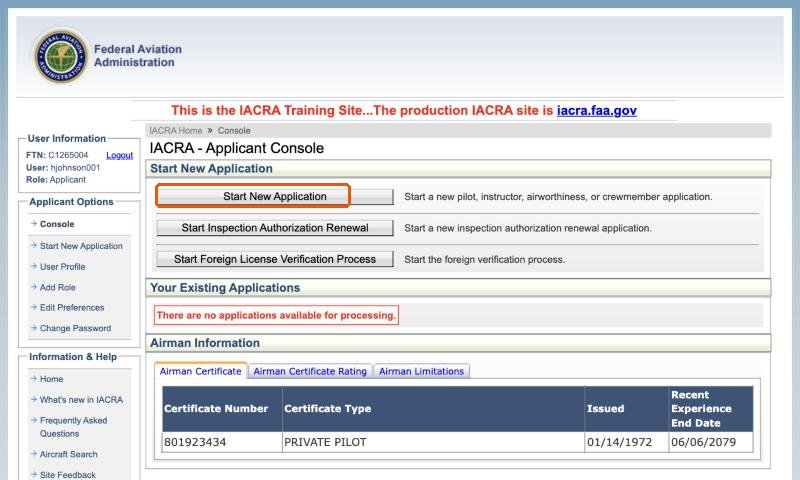
Log in as an Applicant and click Start New Application. If you already hold an FAA pilot certificate, it is listed under Airman Information.
Step 2: Choose the military competency path
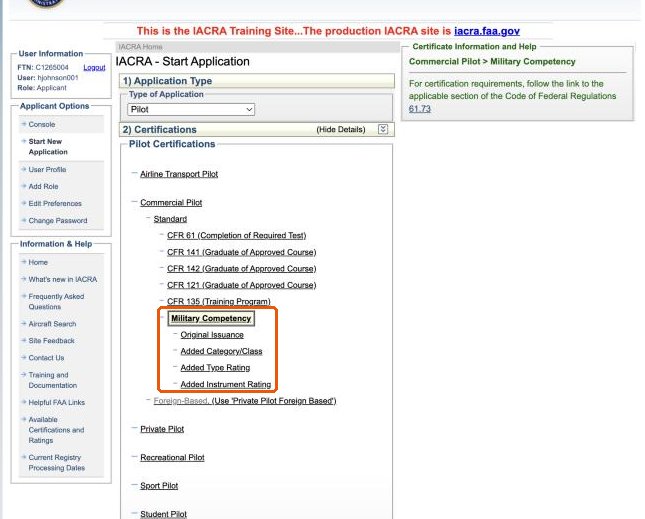
Choose Pilot as the application type, then Commercial Pilot, Standard, Military Competency. Pick the type of issuance:
- Original Issuance: you do not hold a commercial pilot certificate yet.
- Added Category/Class: you hold a commercial certificate and are adding an aircraft category or class.
- Added Type Rating or Added Instrument Rating: you are adding that rating to an existing certificate.
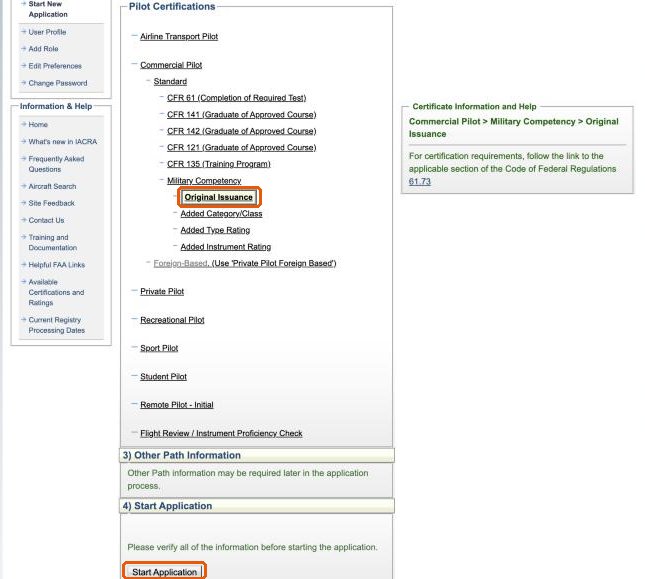
This guide follows Original Issuance. Click it, then Start Application.
Step 3: Personal information
The application has six tabs across the top. The path line confirms Pilots > Commercial Pilot > Standard > Military Competency > Original Issuance. Check your personal information, height, weight, hair and eye color, contact details and address.
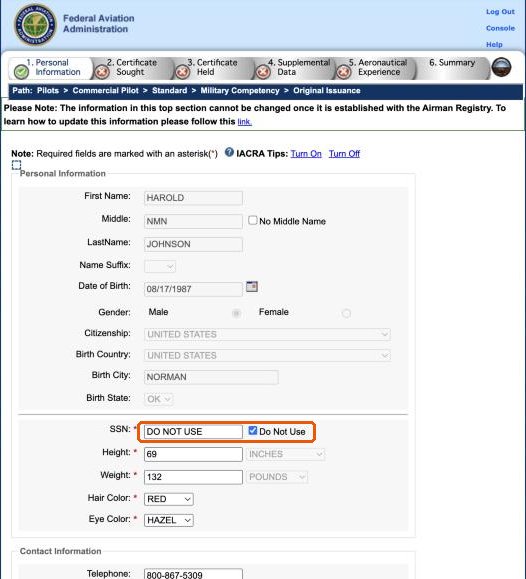
Check Do Not Use for your Social Security number. The SSN is optional on FAA Form 8710-1. Checking Do Not Use fills the field with DO NOT USE and keeps your number off the application.
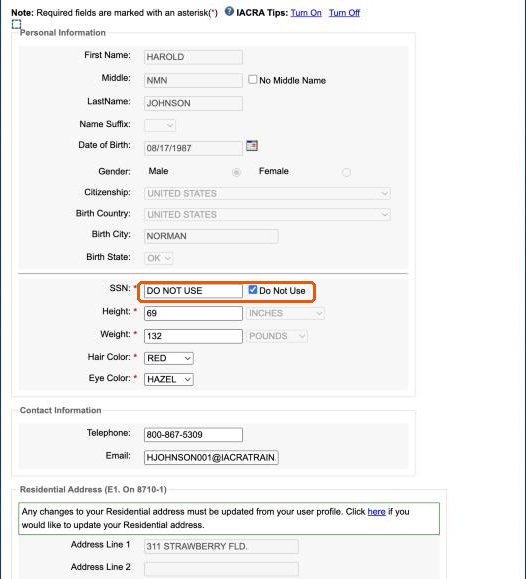
If you want your certificate mailed somewhere other than your residential address, use the mailing or special mailing address options at the bottom, then click Next.
Step 4: Certificate sought
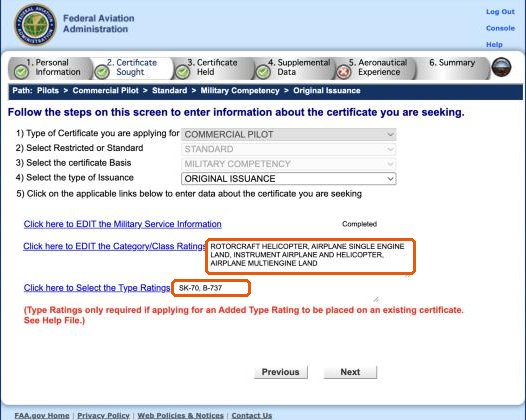
The certificate type, basis and issuance are filled in from your path. Use the links to enter your military information and the ratings you are applying for.
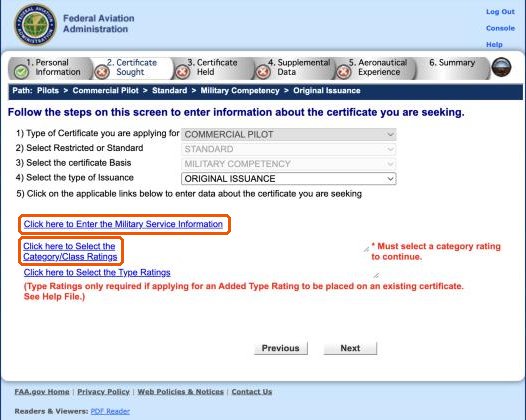
Military service information
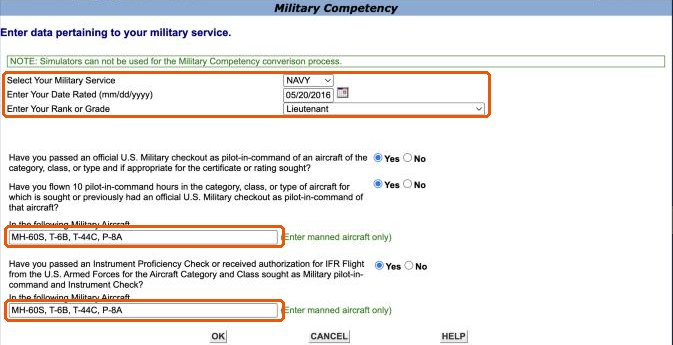
Click Click here to Enter the Military Service Information. In the pop-up window, enter:
- Your military service, date rated, and rank or grade
- Whether you passed an official U.S. military checkout as pilot in command in the category, class or type sought, and whether you have 10 pilot-in-command hours in it, with the military aircraft make and model
- Whether you passed an instrument proficiency check or received authorization for IFR flight as military pilot in command, with the aircraft
Enter manned aircraft only. List every aircraft that supports the ratings you are applying for. Simulators cannot be used for military competency. Click OK.
Category and class ratings
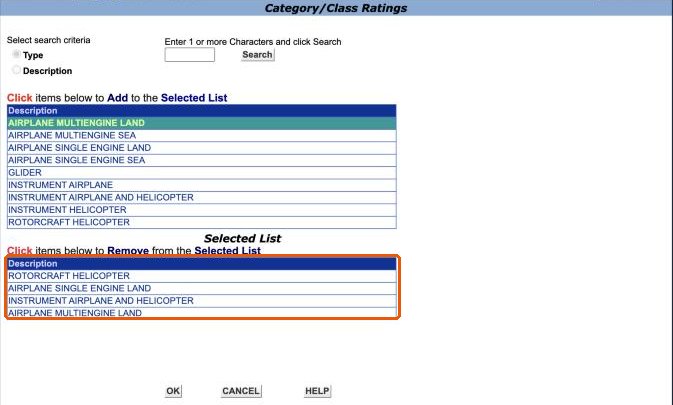
Click Click here to Select the Category/Class Ratings. Click each rating your military records support to add it to the Selected List. Click a selected rating to remove it. Click OK.
Type ratings
A type rating can only be issued for a military aircraft that has an equivalent on the FAA’s list of aircraft type designations. Check each aircraft you flew before you add anything here:
- Start with your branch’s table of common aircraft: Army, Air Force, Navy and Marine Corps or Coast Guard. Then confirm on the FAA type designations list, which the FAA Registry provides as a file download.
- Find each military aircraft in your records by its military designation, the same make and model you entered in your military service information.
- Note the FAA type designation listed for it. If your aircraft is not on the list, no type rating can be issued from it, though your time in it still counts toward the category and class ratings.
Then click Click here to Select the Type Ratings, search for the FAA type designation exactly as the list shows it, and add it.
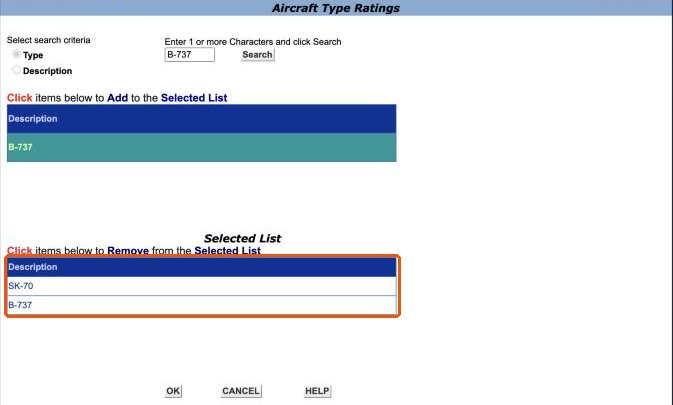
IACRA’s own list can spell a designation differently from the FAA list. On the training site, searching for the H-60’s S-70 returns SK-70. If your designation does not come up as written, ask your examiner before you choose a near match.
IACRA shows a note that type ratings are only required for an added type rating on an existing certificate. Confirm with your examiner which type ratings your records support before you add them.
When you are done, the Certificate Sought tab shows the military service information as Completed and lists your ratings. Click Next.
Step 5: Certificate held
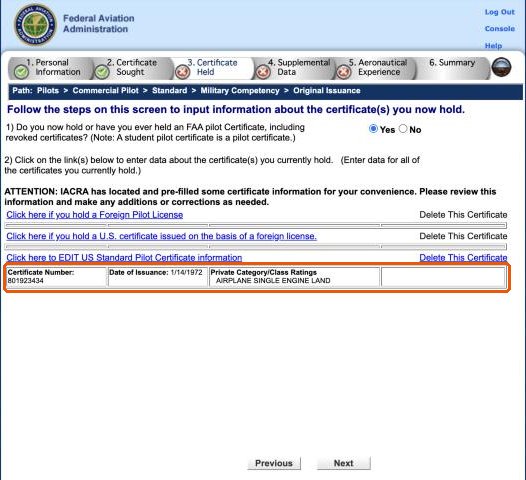
If you hold an FAA pilot certificate, IACRA fills in what it finds on your record. Check it. Use Click here to EDIT US Standard Pilot Certificate information to correct the certificate number, date of issuance or ratings so they match the certificate you hold.
Step 6: Supplemental data
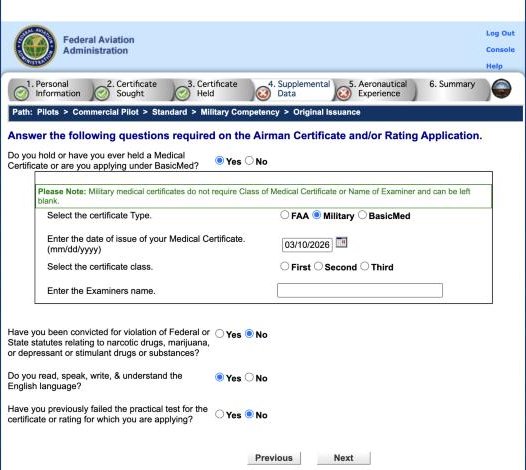
Answer the medical, drug conviction, English language and failed practical test questions. A military medical certificate can be used: select Military and enter the date of issue. The class and examiner name can be left blank for a military medical.
Step 7: Aeronautical experience
Enter your flight time from your official military records in the Aeronautical Experience Grid, by aircraft category, and fill in the Class Hours below it. Click Save Hours as you go so a session timeout does not lose your entries.
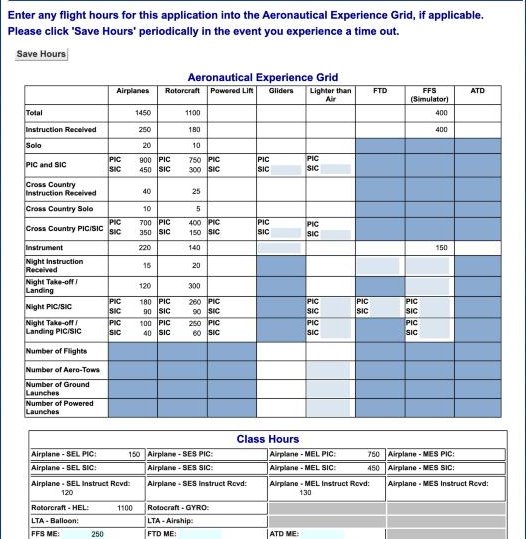
IACRA notes that class hours go to the Record of Pilot Time on the 8710-1, and that missing class hours can result in a correction notice from the Airmen Certification Branch.
Step 8: Review and submit
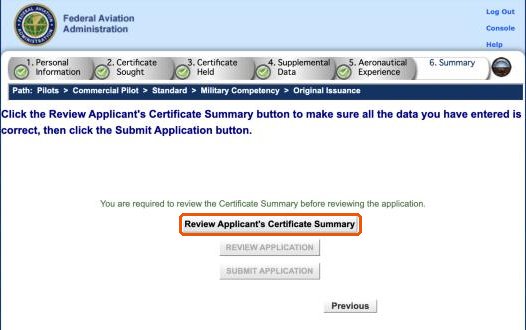
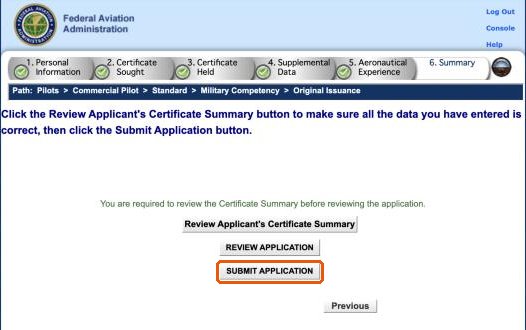
On the Summary tab, click Review Applicant’s Certificate Summary first. The other buttons unlock after it.
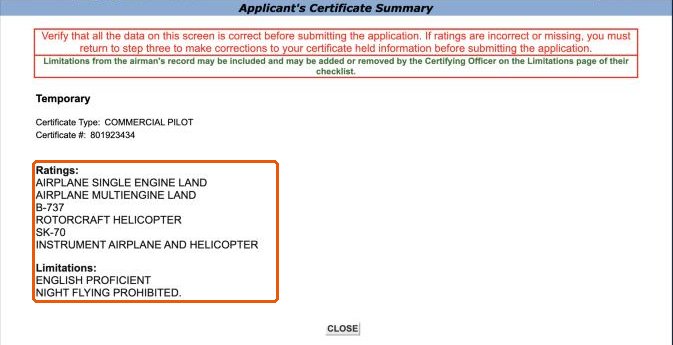
Check the ratings. If any are wrong or missing, go back and correct them before you submit.
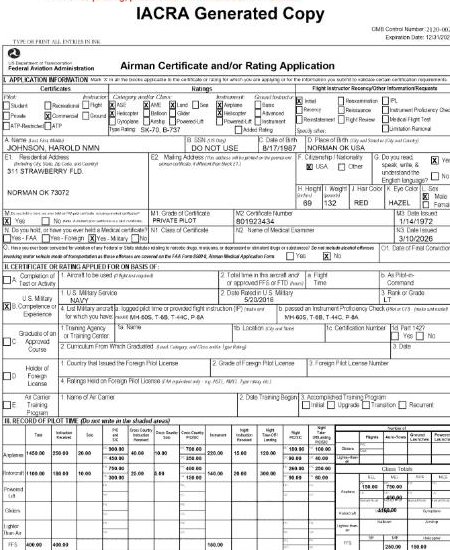
Click Review Application to see your FAA Form 8710-1. Check your military service, the aircraft listed and the pilot time.
Then click Submit Application. You can still edit the application from your console after submitting if something needs correcting.
Step 9: Sign your application
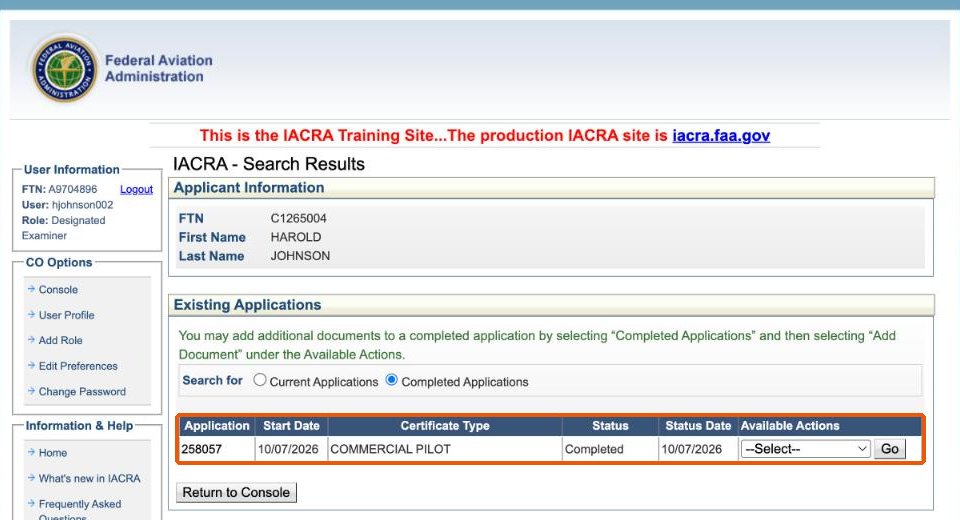
After the examiner retrieves your application with your FTN and completes the first checks, its status changes to Ready for Applicant Signature. Log back in to IACRA, open the application from your console and sign it with your password. The examiner cannot continue until you sign.
What the examiner does
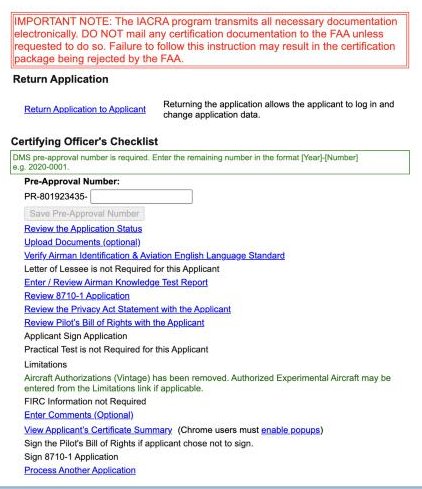
The examiner works through the Certifying Officer’s Checklist: verifying your identification and English proficiency, reviewing your knowledge test report and your 8710-1, going over the Privacy Act statement and Pilot’s Bill of Rights with you, and reviewing the limitations on your certificate. After you sign, the examiner signs and the application is completed.
Working with ATACS
ATACS processes military competency applications remotely, nationwide. Send a request with your branch, your aircraft qualifications and the certificate or ratings you want. The examiner reviews your records first and tells you what they support before you build the application.