
Getting started in IACRA
How to register in IACRA, find your FAA Tracking Number (FTN) for your knowledge test, set up your profile and start an application.
IACRA (Integrated Airman Certification and Rating Application) is the FAA website where you complete FAA Form 8710-1 and most other airman applications. You, your instructor and your examiner each work on the same application from your own accounts. This guide covers the steps every application shares. Each service has its own step-by-step guide after that.
Before you start
- Check whether you already have an account. If you used IACRA before, for example for a student pilot certificate, log in with that account instead of registering again. Use the forgotten username or password links on the login page if you need to. A second account gives you a second FTN, which causes problems with your applications.
- Have your official identification handy. Your name in IACRA must match it exactly.
- Allow pop-ups for iacra.faa.gov. Several IACRA screens open in pop-up windows. If your browser blocks them, the links appear to do nothing.
Step 1: Register as an Applicant
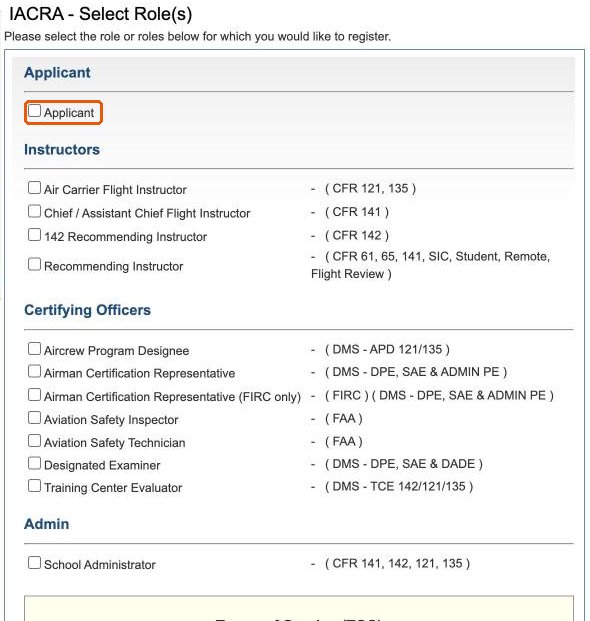
Go to iacra.faa.gov and click Register. On the Select Role(s) page, check Applicant. The instructor, certifying officer and admin roles are for instructors, examiners and schools.
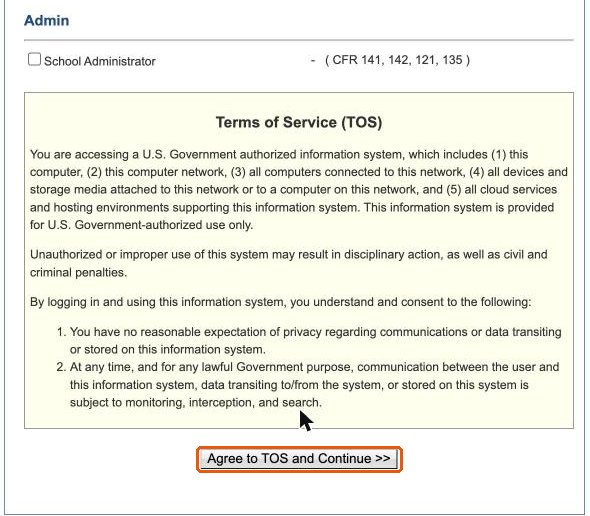
Read the Terms of Service at the bottom of the page and click Agree to TOS and Continue.
Complete the registration form: your personal information, security questions, username and password. Write down your username, and keep your password to yourself. Your instructor and examiner never need it.
Step 2: Find your FAA Tracking Number (FTN)
After you register, IACRA opens your Applicant Console. Your FTN is at the top left, under User Information. It stays the same for every application you ever make. You need it to register for your knowledge test, and it is how your instructor and examiner find your application.
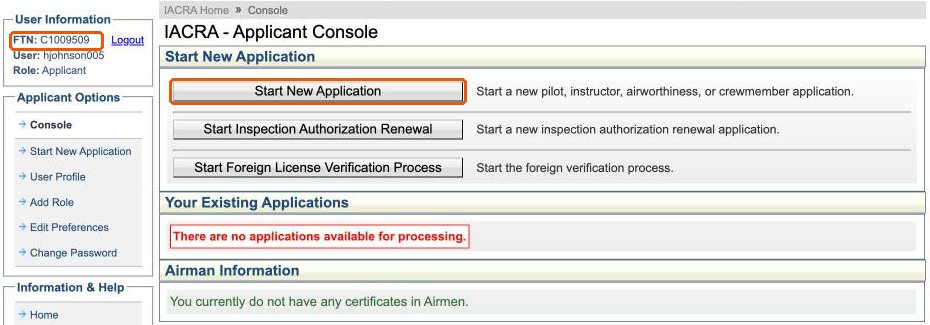
You need your FTN to register for an FAA knowledge test. Complete the steps above before you schedule your written test, and have your FTN ready when you register for it.
Send your FTN with your request. Your FTN is not a secret, and it is all the examiner needs to retrieve your application. Never send your password.
Step 3: Logging in later
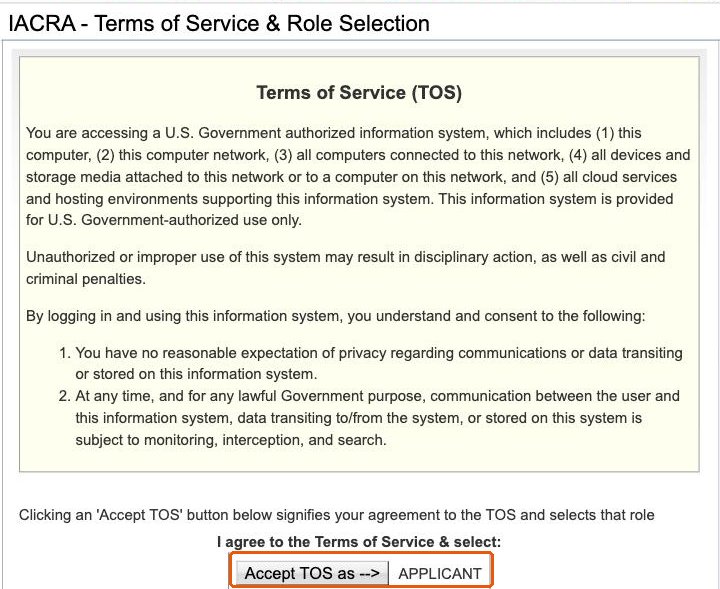
Each time you log in, IACRA shows the Terms of Service again. Click Accept TOS as next to APPLICANT to open your Applicant Console. If you hold more than one role, there is a button for each; choose Applicant to work on your own application.
Step 4: Complete your user profile
The first time you start an application, IACRA may send you to your user profile to add the information an airman application needs. Click OK.
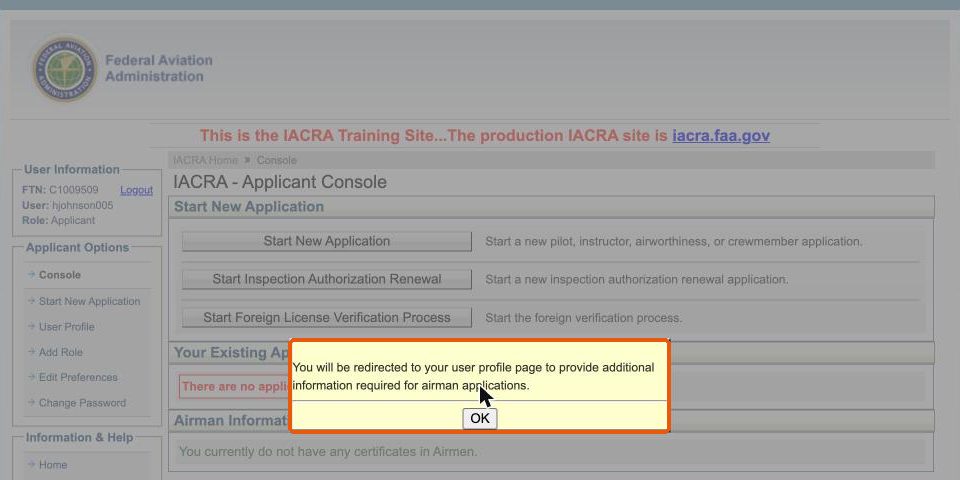
If you already hold an FAA certificate, enter its number and date of issuance. Then enter your full legal name exactly as it appears on your official identification. If you will have a knowledge test, the name must also match your test report exactly.
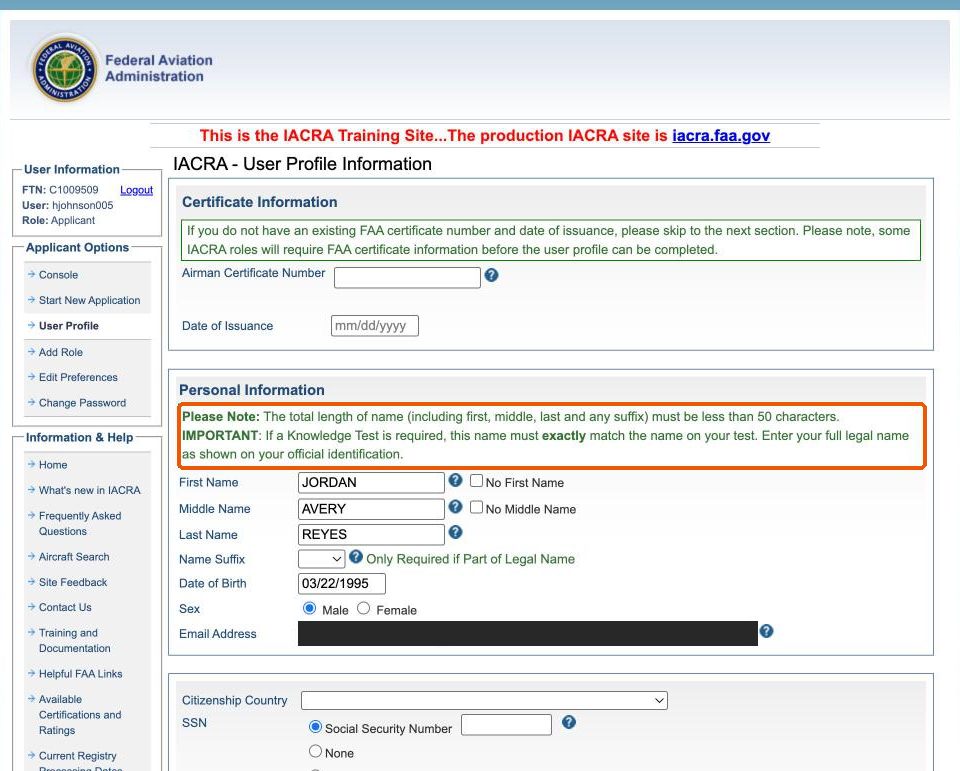
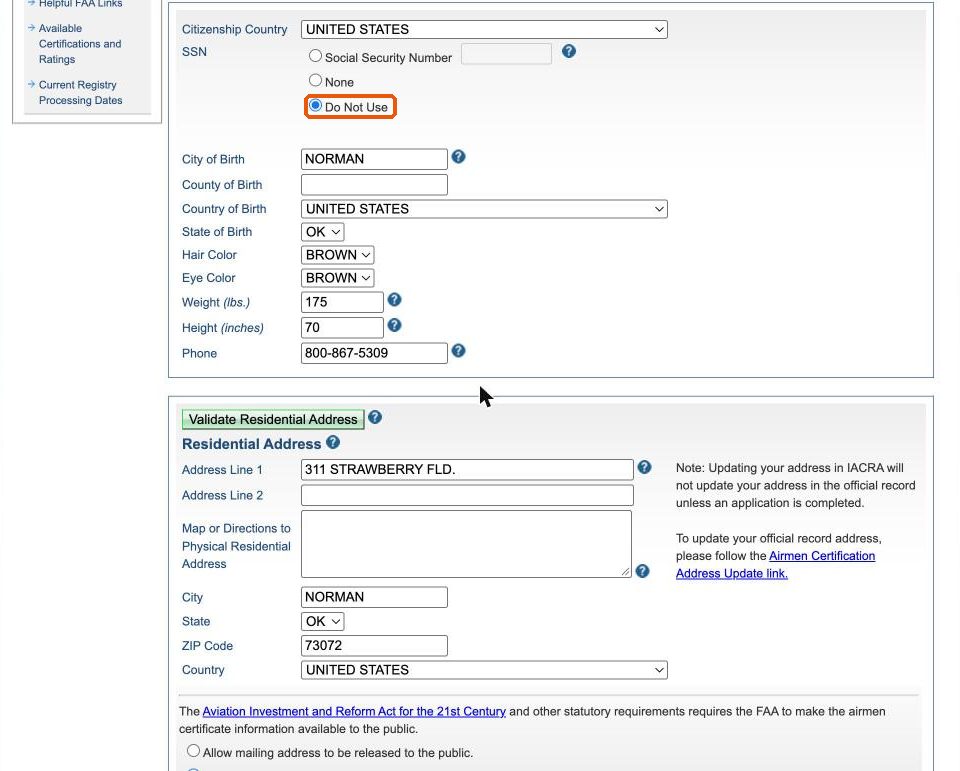
Below that, enter your citizenship, place of birth, physical description, phone and residential address.
Choose Do Not Use for your Social Security number. The SSN is optional on FAA airman applications. Selecting Do Not Use keeps your number off the application.
Step 5: Start a new application
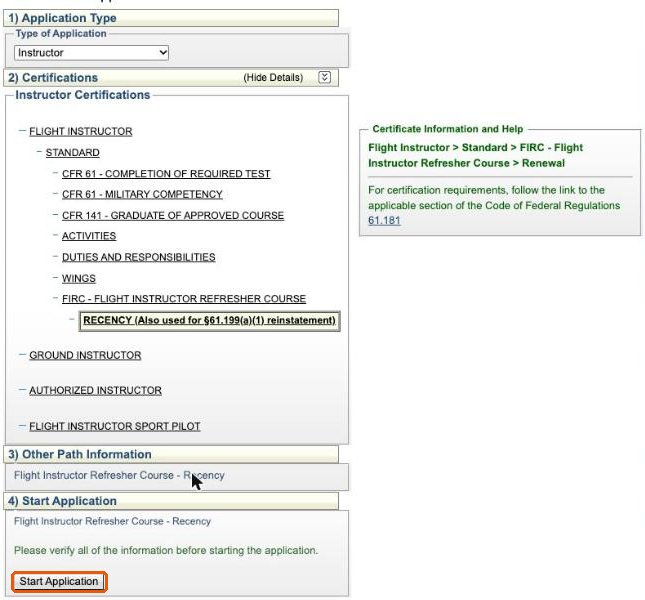
From your console, click Start New Application. The Start Application page has four numbered sections that you work through from top to bottom:
- Application Type: for example Pilot, Instructor or Administrative Action.
- Certifications: click down through the certificate, then the basis, such as Standard, then the type of issuance.
- Other Path Information: extra choices for some paths, such as the ratings you are applying for.
- Start Application: check the path shown, then click Start Application.
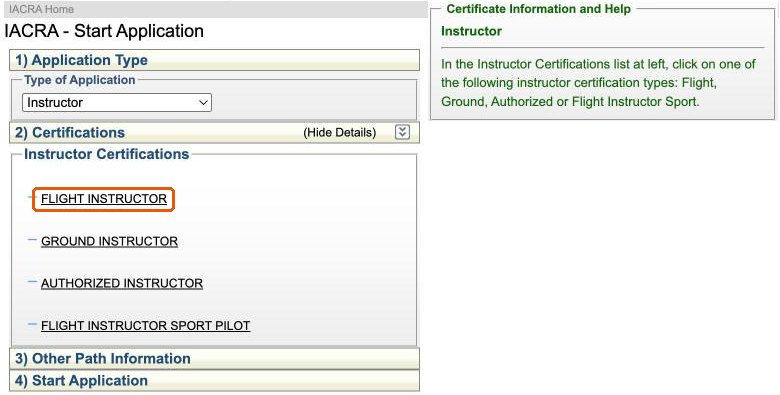
The help box on the right confirms the path you have selected and links to the regulation for it. If you are not sure which path is right, ask your examiner before you start. The path decides which questions the application asks.
Step 6: Work through the application
The application opens with the Applying For line at the top, the sections down the page, and an Application Status panel on the right that checks off each section as you complete it. Your Application ID is shown under the status panel.
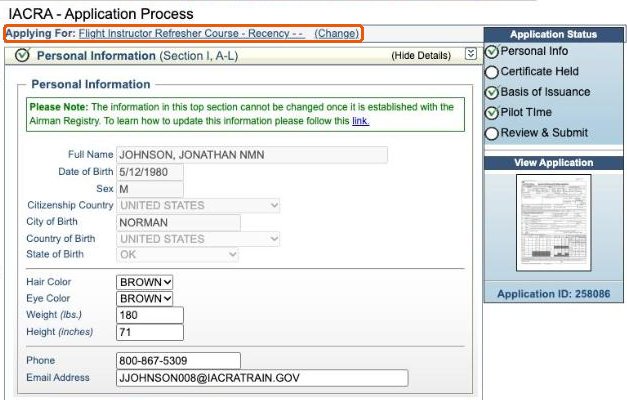
- Click Save in each section before moving on. IACRA logs you out after a period of inactivity, and unsaved entries are lost.
- You can leave and come back. A started application stays on your console. Choose Continue next to it to pick up where you left off.
- Review before you submit. The Review and Submit section lets you view the generated FAA Form 8710-1. If you are not sure something is right, ask your instructor or examiner before submitting.
Step 7: Submit and send your numbers
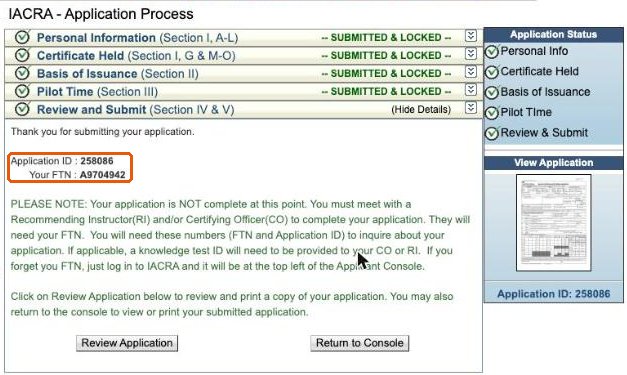
After you submit, IACRA shows your Application ID and FTN. Send both to your examiner.
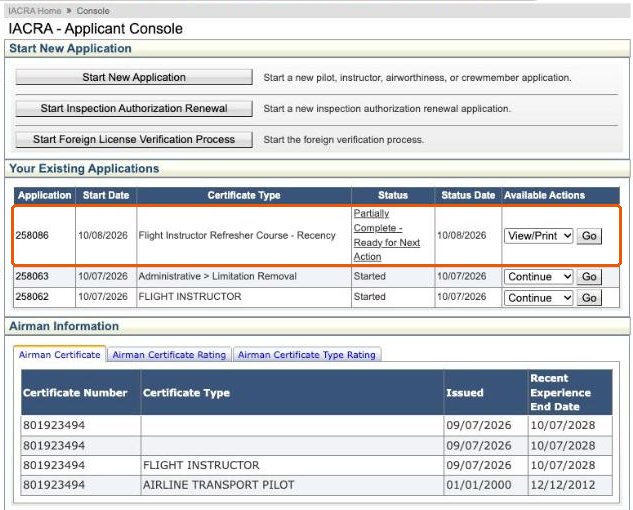
Your application stays on your console under Your Existing Applications with its status. You can view or print it from there, and return to it when it is ready for your signature.
Guides for each service
- Military competency in IACRA
- CFI renewal in IACRA
- Ground instructor in IACRA
- SOE limitation removal in IACRA
- Part 107 for certificated pilots and Part 107 for non-pilots
Working with ATACS
When you send a request, include your FTN. The examiner confirms the right IACRA path for your application before you start, so you only build it once.